I will try to explain a common issue users encounter when using the CSV templates, where fields end up stacked into a single column. This issue is caused by CSV delimiters and typically occurs on Windows systems using Excel with non-English regional settings.
In Eramba, all templates are provided in CSV format and UTF-8 encoding. CSV stands for Comma-Separated Values and is a plain text data format where fields are separated by commas.
That said, if you download a template and open it with a text editor, you will see the fields separated by commas exactly as expected:
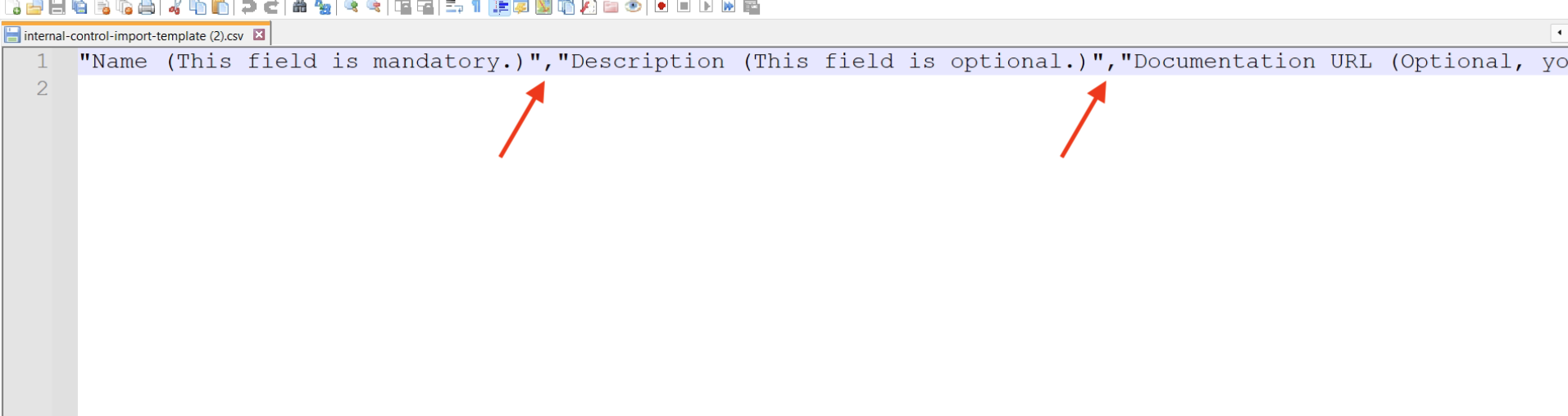
But then, why is it that when you open it with Excel, all the values appear in cell A1 instead of being split into their corresponding columns (B1, C1, D1, etc.)?
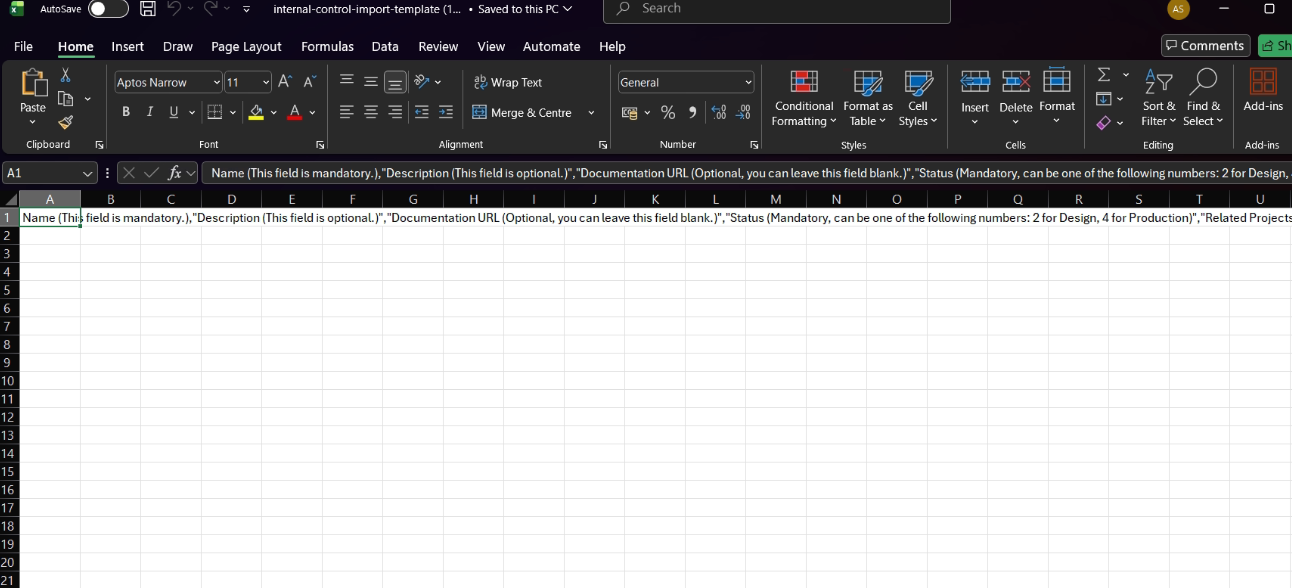
This happens because the software is not recognizing commas as the column delimiter, so it stacks all the values into a single column.
If you have some experience with Excel, you’ll know that you can manually add the delimiter to convert the text into columns:
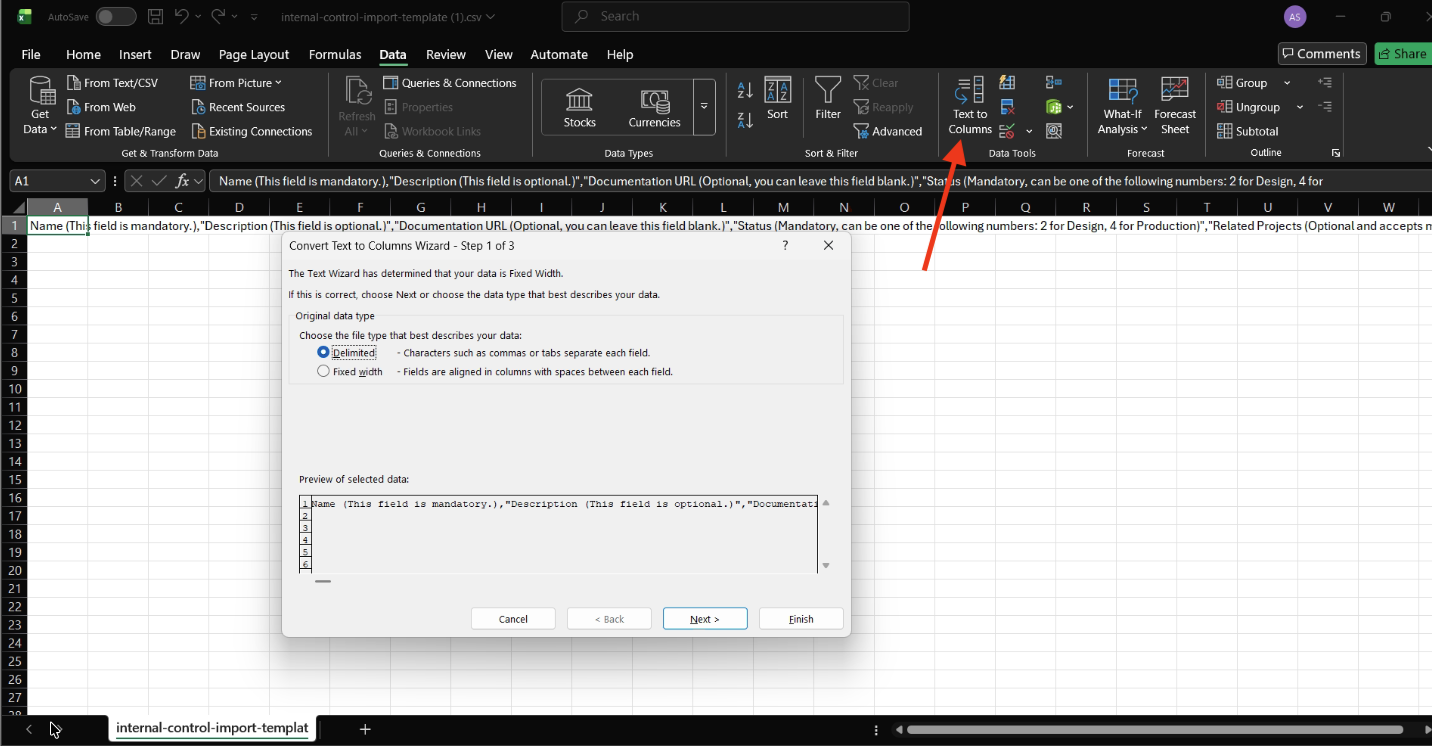

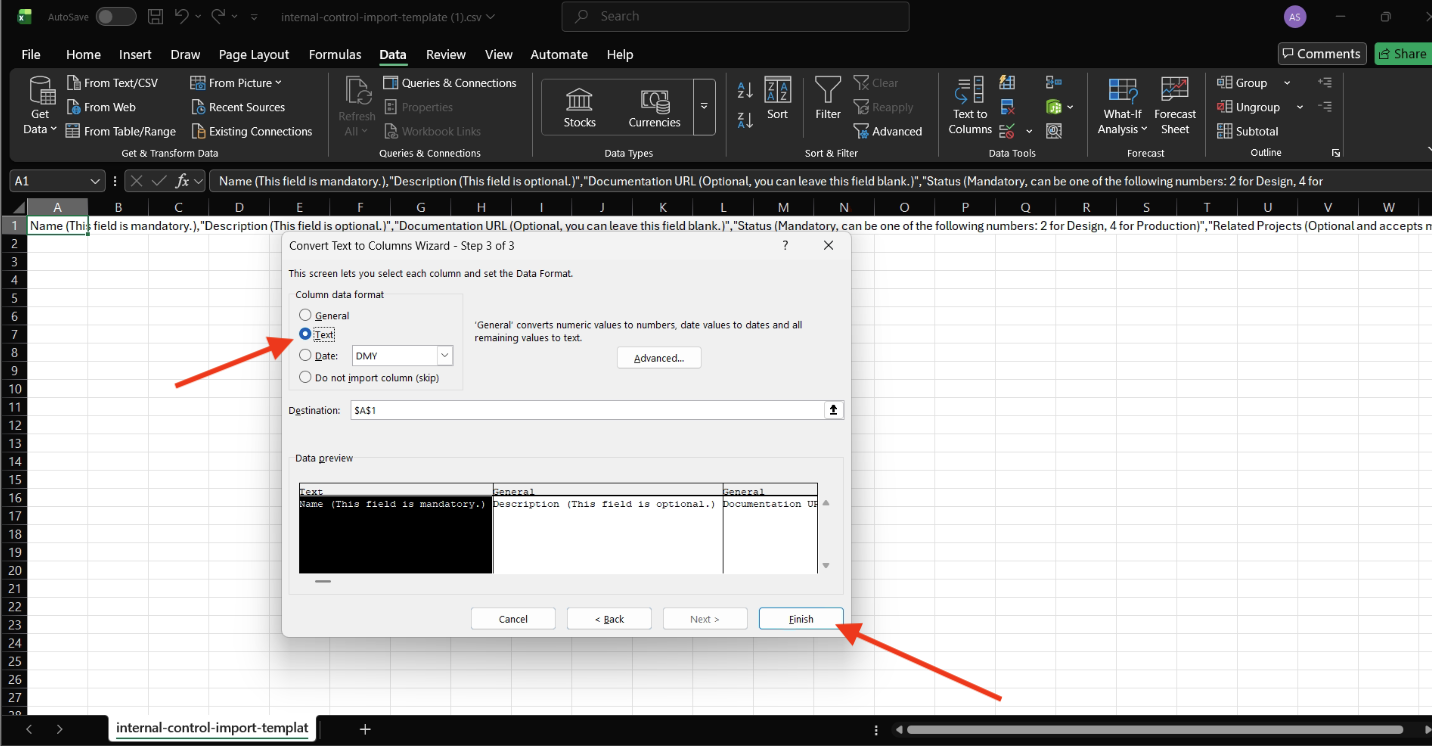
Now the columns are correctly delimited, but keep in mind this process is not perfect and it might not work with all templates.

Now that it’s correctly delimited, we add a couple of fields to test it, save it as .csv UTF-8, upload it into Eramba and… it doesn’t work.

Why doesn’t it work? If we open the file again with a text editor, we’ll see that Excel has automatically replaced the commas with semicolons.
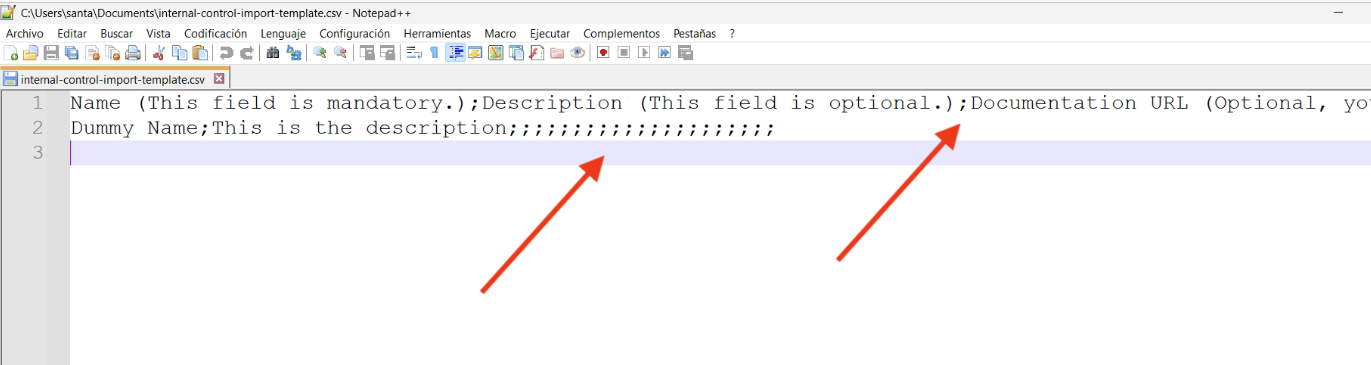
This happens because Windows has a global setting, depending on your region, that determines which character is used as the delimiter.
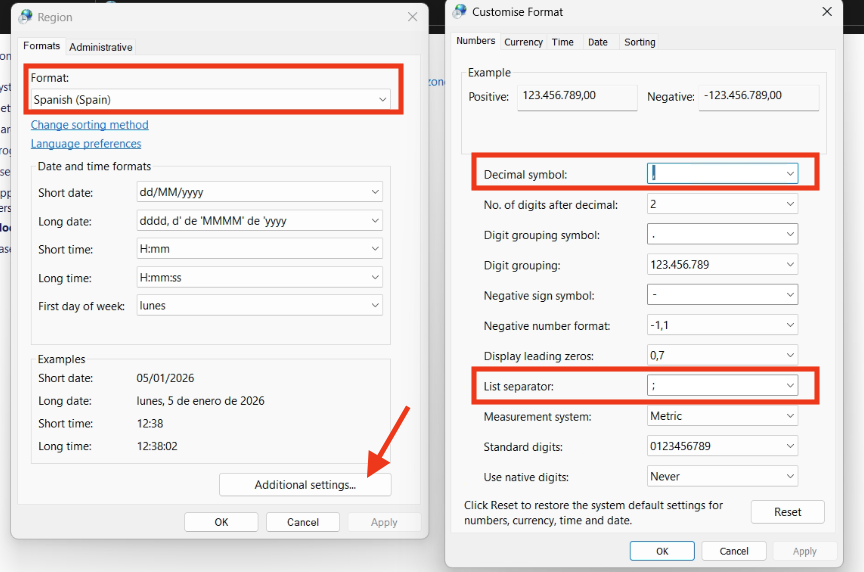
For example, by default in Spanish (Spain), the “List Separator” is set to a semicolon. This means Excel uses this as the default delimiter, which is why, when I opened the template before, all values were stacked in the first column, and when the file was saved, the commas were replaced by semicolons.
Control Panel > Change date, time, or number formats > Additional Settings.
And for other regions, like English (United Kingdom), the list separator is a comma, so presumably there won’t be any issues.
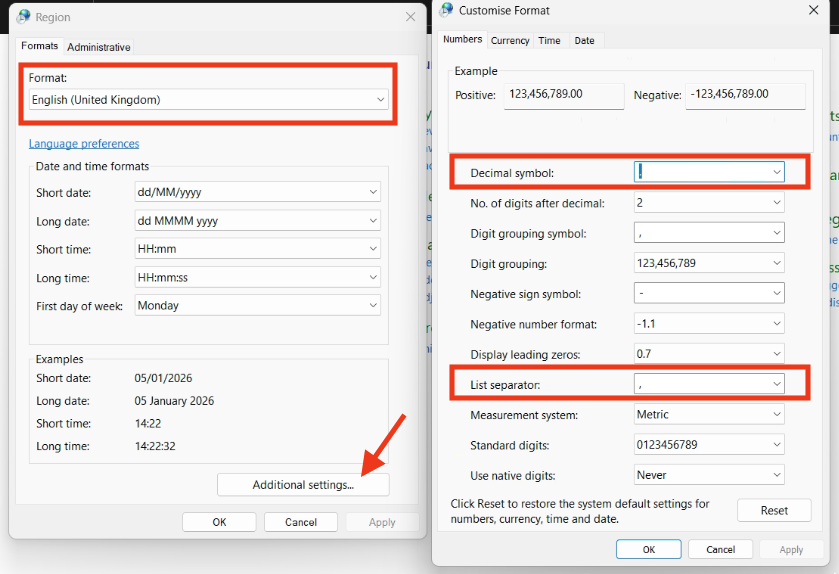
If you want to change the “List Separator” delimiter, keep in mind that Windows doesn’t allow it to be the same as the ‘Decimal Symbol’ (you can’t have a comma for both the List Separator and the Decimal Symbol)
So what are the options?
-
Use another spreadsheet software, such as Google Sheets or LibreOffice.
-
Change the ‘List Separator’ value in the Windows Control Panel.
-
Change the delimiter in Eramba settings. (Keep in mind this will change the configuration for all Eramba users.)