Set the following values in the Entra Enterprise Application (Single Sign-On → SAML):
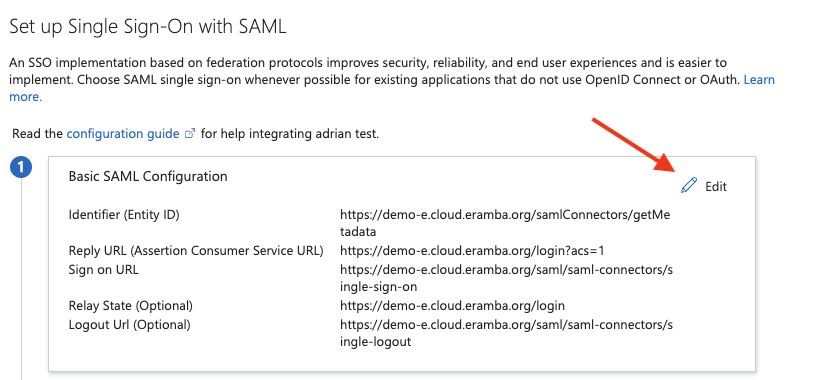
Identifier (Entity ID)
https://your-eramba-domain/samlConnectors/getMetadata
Copy
Reply URL (Assertion Consumer Service URL)
https://your-eramba-domain/login?acs=1
https://your-eramba-domain/portal/awareness-programs/login
https://your-eramba-domain/portal/vendor-assessments/login
https://your-eramba-domain/portal/account-reviews/login
https://your-eramba-domain/portal/policy/login
Copy
Sign on URL (optional)
https://your-eramba-domain/saml/saml-connectors/single-sign-on
Copy
Relay State (optional)
https://your-eramba-domain/login
Copy
Logout URL (optional)
https://your-eramba-domain/saml/saml-connectors/single-logout
Copy
Navigate to Settings > Authentication Methods > SAML Connectors and create a new SAML Connector.
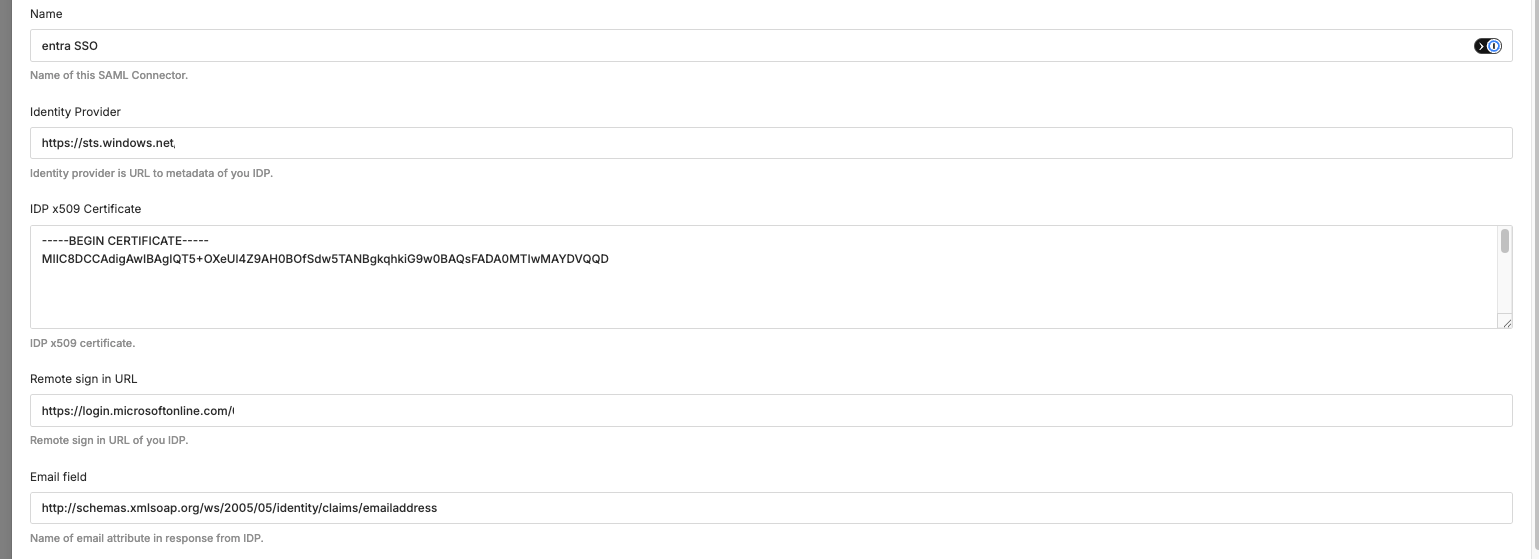
| eramba SAML Connector field | Entra / Azure value |
|---|---|
| Eramba Identity Provider | Microsoft Entra Identifier |
| IdP x509 Certificate | Certificate (Base64) — download the certificate and paste it directly into eramba |
| Remote sign in URL | Login URL |
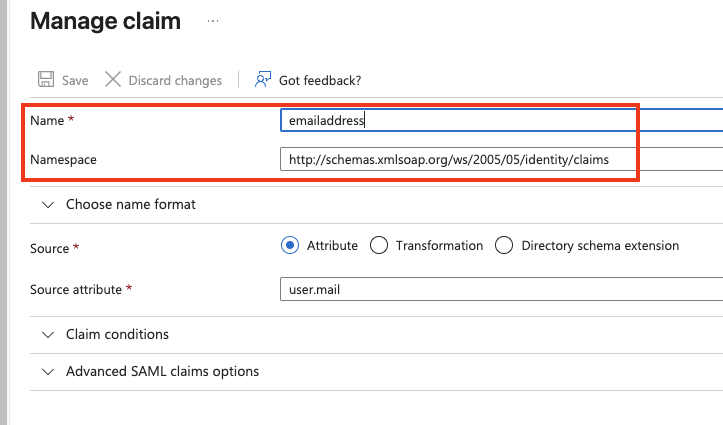
| Email field | http://schemas.xmlsoap.org/ws/2005/05/identity/claims/emailaddress |
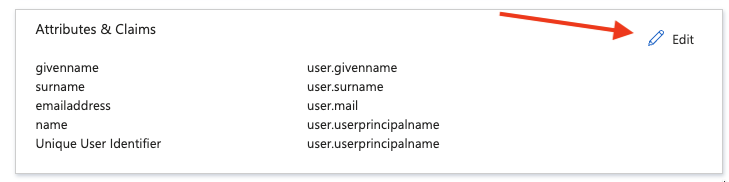
The Email field may differ depending on your attributes/claims configuration. Verify the exact claim name under Attributes & Claims in the Entra Enterprise Application before entering it in eramba.
If you are using entra MFA, set Authentication Context to disabled.
